Purpose |
|
|
|
Quick Login |
Content |
|||||||||||
|
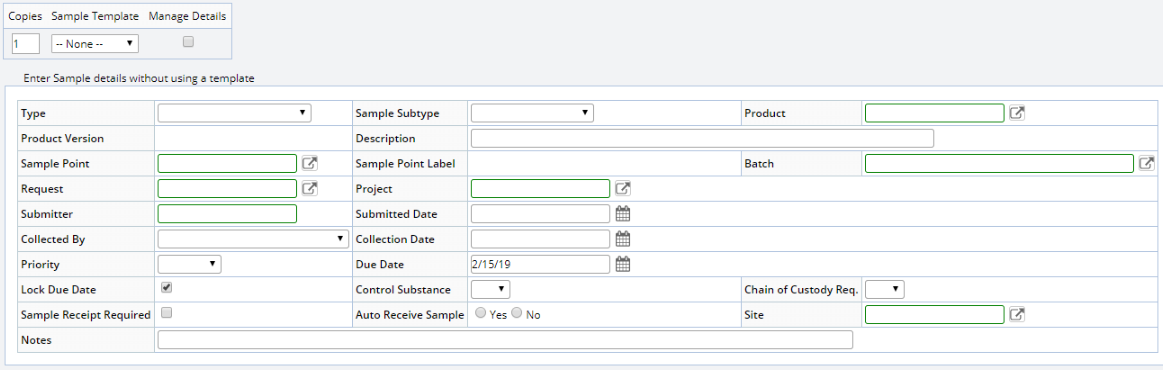
Creates one or more Samples with the option of creating from a Sample Template.
| Field | Description |
| Copies | Number of Samples to create. |
| Sample Template | Sample Template on which the Samples are based. |
| Type | Sample Type to be associated with the Samples. |
| Sample Subtype | Choose a Sample SubType. Optionally, choose a SubType without specifying a Sample Type, the Sample Type fills in. See Sample Types for more information. |
| Product | Product to be associated with the Samples. In the Product description, see the note about Specification Versions. |
| Sample Point | Sample Point to be associated with the Samples. |
| Batch | Batch to be associated with the Samples. |
| Request | Request to be associated with the Samples. |
| Project | Project to be associated with the Samples. |
| Submitter
Submitted Date |
User who is creating the Samples, and the date being submitted for login. |
| Collected By
Collection Date |
User who will collect the Samples, and the date they will be collected. |
| Priority | Use this to indicate urgency. |
| Due Date | Choose the Sample Due Date. At the Product and Sample Type level you can define a Due Date Offset. The Due Date Offset value is copied down (based on the Copy Down Policy) and used with the Due Date defined here to calculate the Sample Due Date. Upon Saving the Due Date is Calculated. If you do not want the Due Date to be calculated check the Lock Due Date option. |
| Lock Due Date | Locks the Due Date entered at the Sample Level. The Due Date Offset from the Product or Sample Type is not considered. Lock Due Date is checked by default. |
| Control Substance | Use this to indicate a controlled substance. |
| Chain of Custody Req | Determines whether or not a Chain of Custody will be started for the Samples. |
| Sample Receipt Required | Determines whether or not to require Sample Receipt (see Receive). |
| Auto Receive Sample | Determines whether or not the Sample status changes to "Received" immediately after login (see Receive). |
| Notes | Use this to enter descriptive text. |
| Page 2 |
If Manage Details is checked, you can add Tests, Data Sets, and Specifications at this time. The Sample List page then loads.
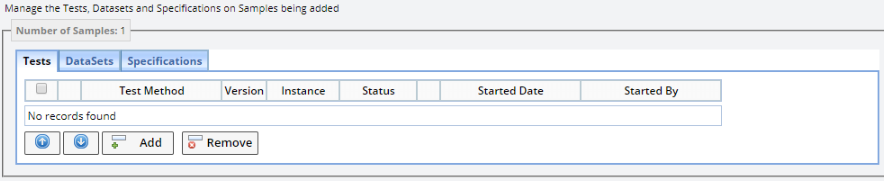 |
If Manage Details is not checked, the Sample List page loads without displaying the above detail elements.